Global Ergonomics Month: An Ergonomic Home Office Setup in Five Evidence-Based Steps
3 July 2026 · Workplace health
October is Global Ergonomics Month, so we have distilled a home desk into five checkable adjustments, each grounded in a single piece of published guidance rather than marketing folklore.
Why October, and why five steps
Each October the International Ergonomics Association marks Global Ergonomics Month, a coordinated push by its member societies to make human factors advice more accessible to ordinary workplaces rather than only large employers. Home offices are exactly the setting that tends to miss out on a professional assessment, so this is a fitting moment to check your own. Rather than an exhaustive audit, we have reduced the task to five adjustments you can make in an afternoon: chair height, screen height, lighting, input position, and movement. Each step below cites one credible source and points to the Deskt category that addresses it, so you can act on the ones that apply to you and safely ignore the rest. Treat all of this as general workspace guidance, not medical advice; if you have a specific condition or persistent pain, speak to a qualified professional.
Step 1: Set the chair first, so your forearms sit level
Ergonomics works from the body outwards, which means the chair is the foundation, not an afterthought. The Canadian Centre for Occupational Health and Safety advises keeping the elbows close to the body and bent to roughly 90 to 110 degrees, with the forearms, wrists and hands running straight and roughly parallel to the floor. Raise or lower the seat until that happens at your keyboard; if your feet then leave the floor, support them rather than dangling. A chair with genuine height and lumbar adjustment does most of the work here, and a footrest closes the gap for shorter users.
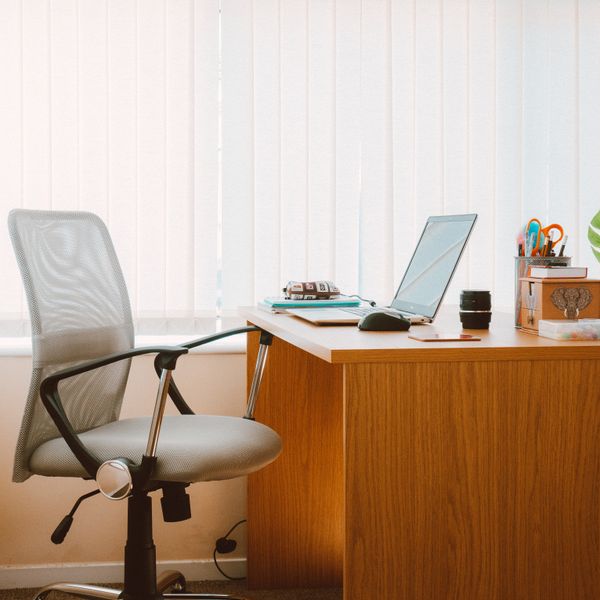
ErgoPro Mesh Office Chair
Breathable mesh, full adjust

Base Footrest
Tilting, non-slip top
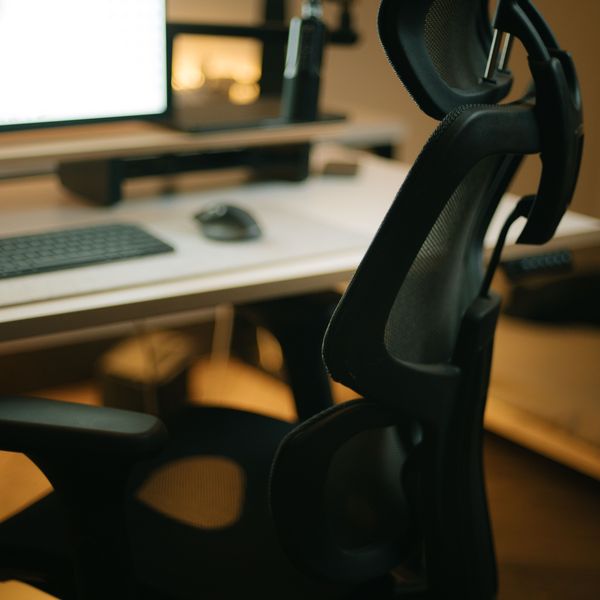
Lumbar Back Support
Memory foam, straps
Step 2: Bring the screen up to your eyes
Once seated correctly, most people find their monitor is too low, which pulls the head forward and loads the neck. The common rule places the top of the screen at or just below seated eye level, though the biomechanics research is more nuanced: Burgess-Limerick and colleagues found people prefer a gaze angle somewhat below the horizontal, so a screen sitting a touch lower with a slight backward tilt is entirely reasonable. The practical test is simple. Look straight ahead and your eyes should land in the upper third of the display without tilting your head. A monitor arm or a fixed riser both achieve this; an arm adds the flexibility to fine-tune tilt and distance.

Arc Single Monitor Arm
Gas-spring, full motion

Zenith Monitor Riser
Bamboo shelf, cable slot

Aero Laptop Stand
Aluminium, adjustable angle
Step 3: Light the task, not the screen
Lighting is the step most home setups skip, yet it drives both eye comfort and posture, because we unconsciously lean towards poorly lit work. The European standard EN 12464-1 sets 500 lux of maintained illuminance on a general office task area such as reading and keyboard work. Just as important, that light belongs on the desk and documents, not blasting the screen plane, where it washes out contrast. A dedicated task lamp or a monitor-mounted light bar lets you raise desk brightness without adding glare or a reflection in the display.
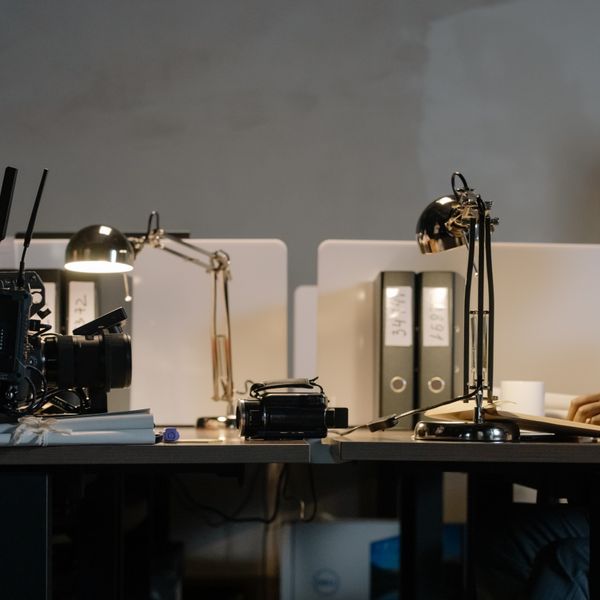
Lumina Monitor Light Bar
Screen-safe, no glare
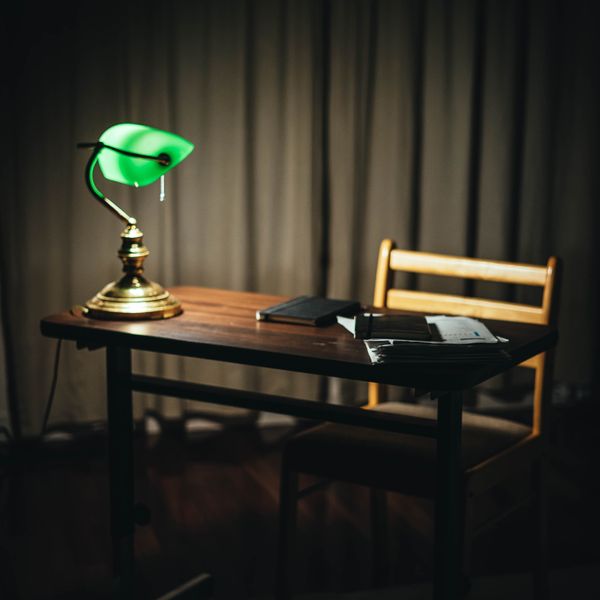
Focus Desk Lamp
Dimmable, warm to cool

Curve Monitor Light Bar
Bends to curved ultrawide screens
Step 4: Pull your input in and keep the wrists neutral
Reaching for a keyboard or mouse is a common, avoidable source of shoulder and wrist strain. The Canadian Centre for Occupational Health and Safety recommends placing the keyboard and mouse close to the front edge of the desk, a few centimetres in, so the elbows can stay by your sides while the hands reach comfortably. Keep the wrists straight rather than cocked up or bent sideways, and rest them only in pauses, not while actively typing. If a conventional keyboard forces your forearms inward, a split or contoured layout and a vertical mouse can restore a more neutral posture.
Step 5: Design the day to include movement
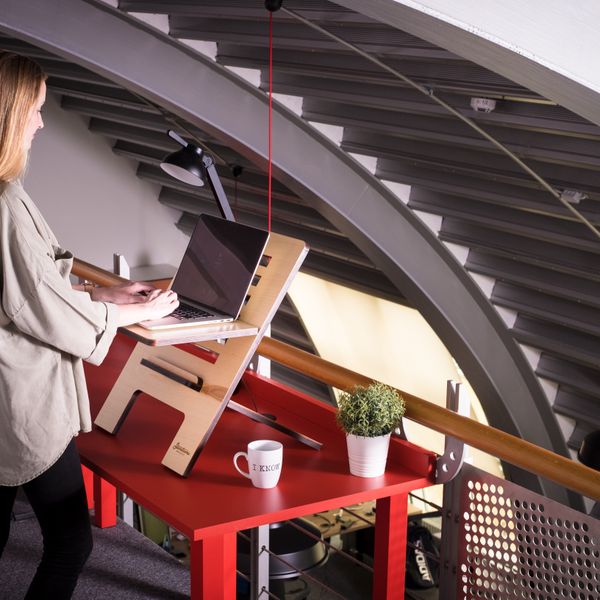
No single posture is healthy for eight hours, so the last step is about interrupting stillness rather than perfecting a pose. Public health guidance summarised by the Society of Behavioral Medicine encourages regularly breaking up prolonged sitting with short bouts of light activity, and it frames this as worthwhile even for people who already exercise. A short stand-and-stretch every half hour is a sensible target; a sit-stand desk or a desktop converter simply makes that switch frictionless enough that you actually do it. Treat the alternation itself, not the standing, as the point. This is general guidance rather than medical advice.

Apex Electric Standing Desk
Dual-motor, memory presets
Rise Standing Desk Converter
Sit-stand, two-tier
Rover Mobile Standing Desk
Rolling cart, gas-spring lift
FAQ
Do I really need to buy anything to improve my setup?
Often not. The five steps are adjustments first: lower your chair, prop your screen on a sturdy box, move the light and keyboard, and set a timer to stand. Equipment helps when your existing furniture cannot be adjusted, for example a fixed-height desk, a chair with no seat adjustment, or a laptop you cannot raise without losing the keyboard.
Should the top of my monitor be exactly at eye level?
Treat it as a starting point, not a rule. The widely taught guideline is top-of-screen at or just below eye level, but biomechanics research shows people are comfortable looking somewhat downward, so a slightly lower screen with a small backward tilt is fine. The reliable test is that your relaxed forward gaze lands in the upper third of the display without you tilting your head.
How often should I stand up when working from home?
A practical target is a brief movement break roughly every 30 minutes: stand, stretch, or walk for a couple of minutes. The general public health message is to interrupt long unbroken sitting with light activity, and it is framed as worthwhile even if you also exercise regularly. This is general guidance, not medical advice.
Sources
- October is Global Ergonomics Month (GEM) — International Ergonomics Association
- CCOHS: Office Ergonomics — Positioning the Monitor
- CCOHS: Office Ergonomics — Keyboard Selection and Use
- Burgess-Limerick et al. — The influence of computer monitor height on head and neck posture
- EN 12464-1 lighting of indoor workplaces — standard in brief (Fagerhult)
- Move More and Sit Less: How to Reduce Sedentary Time — Society of Behavioral Medicine